
Install RechSign on Android
Download the APK on the Android device connected to your display, then open it from Downloads.
Go to the stepsInstallation and pairing
The menus shown in the images may differ on your display.
- 1
Check the Android device
Open Settings, then About. Note the model and Android version, and make sure the device is online.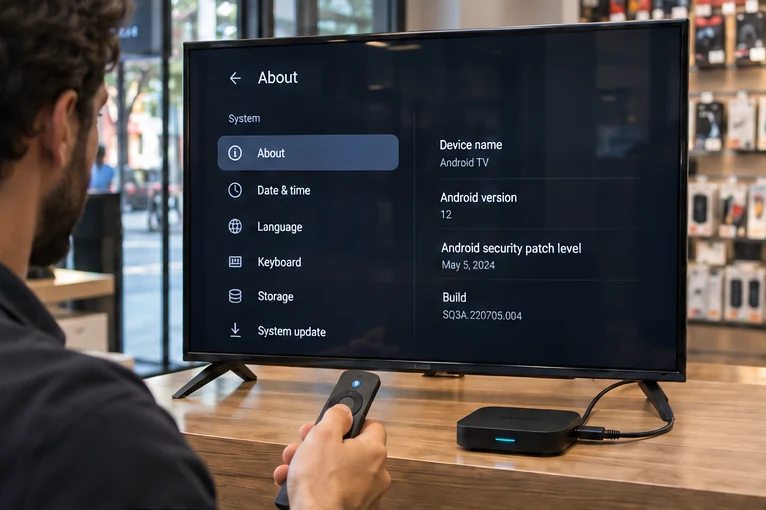
- 2
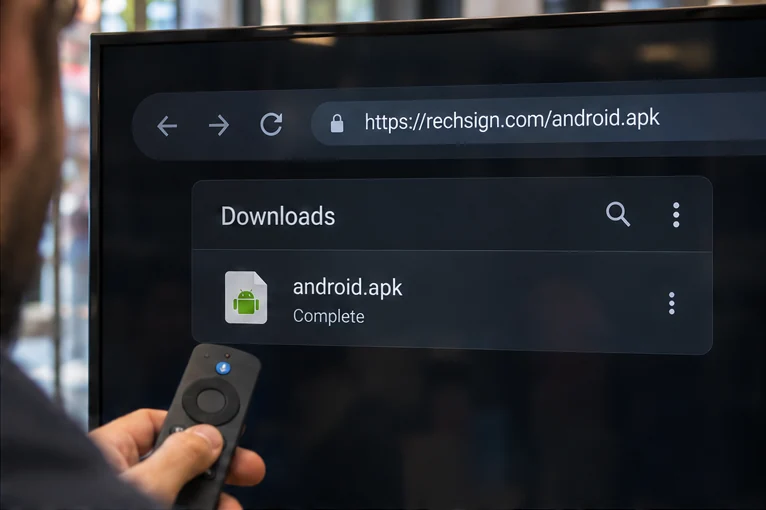
Download the official APK
Open the link on the Android device, then open the APK from Downloads.https://rechsign.com/android.apk
- 3
Install RechSign
Choose Install. If prompted, allow the app that opened the file, then revoke that permission after installation.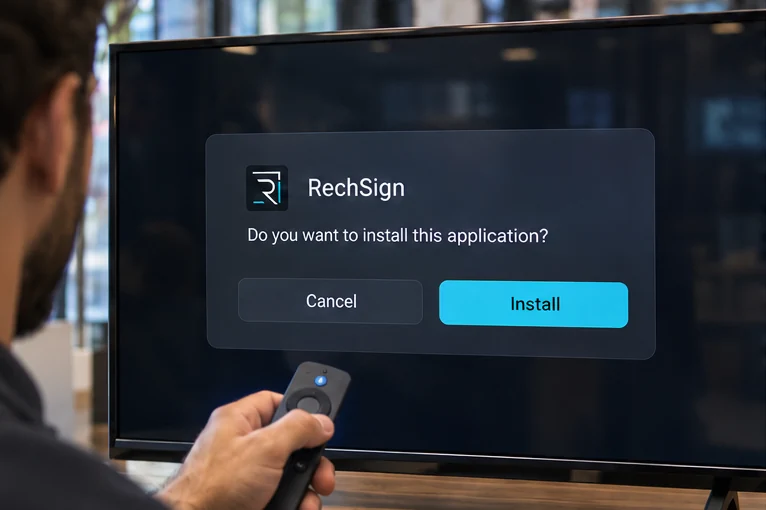
- 4
Open RechSign and pair the display
Open RechSign on the Android device. In the dashboard, go to Screens → Pair screens and enter the code shown.Open the dashboard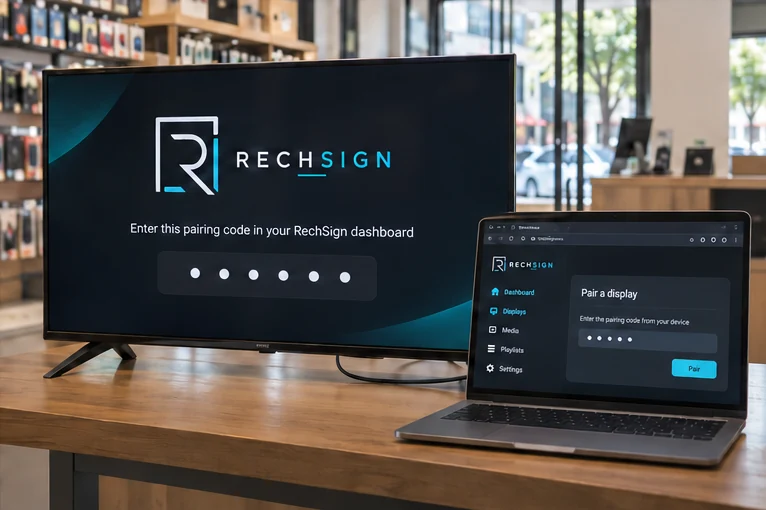
Example only. Use the code shown on your screen.
Troubleshooting
The OEM player returns
Check the manufacturer's auto-start or Home/Default App settings. If they cannot be changed, contact support before production use.
No update prompt appears
Open the download link, approve installation if Android asks, then check the app version.
Playback stops offline
Check the installed version and local media cache. Web and weather content needs a connection or a local fallback. Send a screen photo and logs to support.
Frequently asked questions
Does it run on every Android device?
No. Compatibility depends on OS version, firmware and device permissions.
Can it reboot the device or silently update the APK?
Those operations require management privileges or a documented OEM integration. A standard installation does not guarantee them.
Need help with setup?
Send us your display model, software version, and the step where you got stuck.
Contact our team