
Managing multiple locations
How to manage screens across multiple locations from one dashboard
Organize branch displays, separate shared campaigns from local offers, and decide who reviews and publishes each update without visiting every screen.
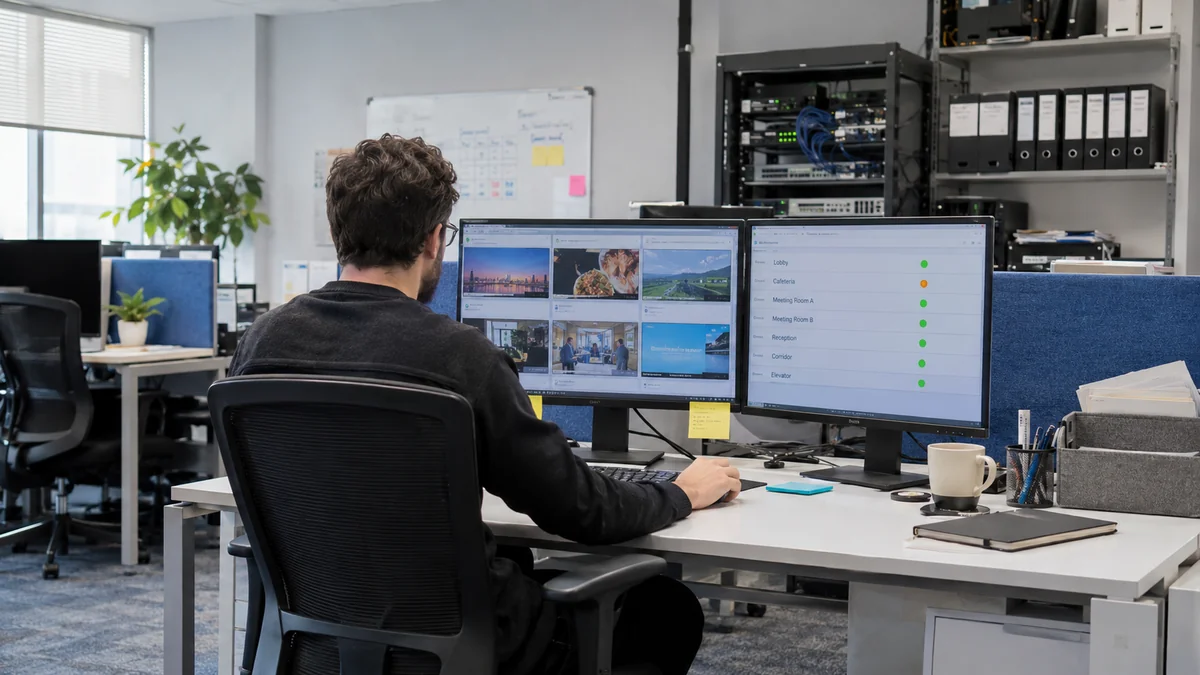
Key takeaways
- Organize screen names and purposes before assigning content.
- Send local offers only to the relevant displays and set a campaign end time.
- Combine connectivity monitoring with checks of actual playback in each branch.
Start with an inventory of your displays
Updating two screens manually may be manageable. As your business adds locations, it becomes harder to remember which display has the latest content and which branch still shows an old advertisement. Start by organizing the devices, content and responsibilities, then use one dashboard to send updates and monitor connectivity.
Before preparing the next campaign, list the displays at each branch. Record each screen’s position, orientation, model, operating system or connected player, and a staff contact who can check it when needed. This inventory helps identify devices that need compatibility testing before you rely on them for a campaign with a fixed launch date.
Give every screen a name the team understands
A name such as ‘Screen 7’ tells the team very little. Combine the branch and position instead: ‘Riyadh — Al Nakheel — Entrance’ or ‘Jeddah — Tahlia — Counter’. Agree on one naming convention so the people preparing content and the staff in each branch use the same names.
Organize displays by branch, then give each one a clear purpose. An entrance screen might show the main campaign, a department screen its products, and reception a set of visitor directions. Knowing the purpose makes it easier to choose the right playlist and avoid sending landscape artwork to a portrait display or a local offer to a branch that does not provide it.
An example: one campaign, three content assignments
Suppose a retailer has three branches and wants to promote a new collection for one week. Entrance displays at all three show the shared campaign, while accessories screens show their department’s products. One branch has a weekend event. Only that location receives the event announcement, then returns to its usual playlist when the event ends.
Before launch, the person managing the campaign lists the target screens and checks the material and start and end times. They test the content on one display, then send it to the other intended devices. On launch day, a staff member at each branch confirms that the correct content is showing. Use this hypothetical workflow as a starting point, and allow time to test delivery on your own devices.
Decide who reviews and who publishes
A central dashboard will not remove mistakes if nobody owns the review. Agree who prepares the content, who approves prices and offer conditions, and who publishes the update. Make these review responsibilities part of your team’s publishing routine.
Give each campaign a clear end time and check branch schedules instead of copying one set of hours everywhere. Before replacing published material, check which playlists use it. For a time-sensitive launch, prepare and test early rather than uploading large files minutes before opening.
Check playback as well as connectivity
Connectivity monitoring helps you identify displays that need attention. It cannot tell you by itself whether the artwork fits or a price is correct. At the first launch, have someone check the display in the branch. A clear staff photo may reveal cropped artwork or a reflection that did not appear in the preview.
Device capabilities vary by model, firmware and player. Check compatibility before rolling out, and test video, scheduling and reopening the app on the same device. If you need offline playback, check that media downloads have completed and test how the actual content behaves. Web-based material may need an internet connection or a local alternative.
A quick review for every campaign
Use this checklist before publishing, and keep a short note of the update time and intended displays. When the campaign ends, check that suitable replacement content is available and that old offers have not remained in a forgotten local playlist. This makes screen updates a clear task the team can repeat.
- Target branch and screen names are correct and easy to identify.
- Content, prices and offer conditions are approved and appropriate for each location.
- Orientation, resolution and video have been tested on the intended device.
- Start and end times suit the branch’s opening hours.
- Connectivity has been reviewed, and someone in the branch has checked the actual display.
- Each branch has a named staff contact who can help if something goes wrong.
Download the checklist
Record each check and your team’s notes in a ready-to-use spreadsheet. Open it in Excel or Google Sheets.
Download checklist CSVFind your display setup guide
Compatibility depends on the model, firmware and player. Check the relevant guide before subscribing.